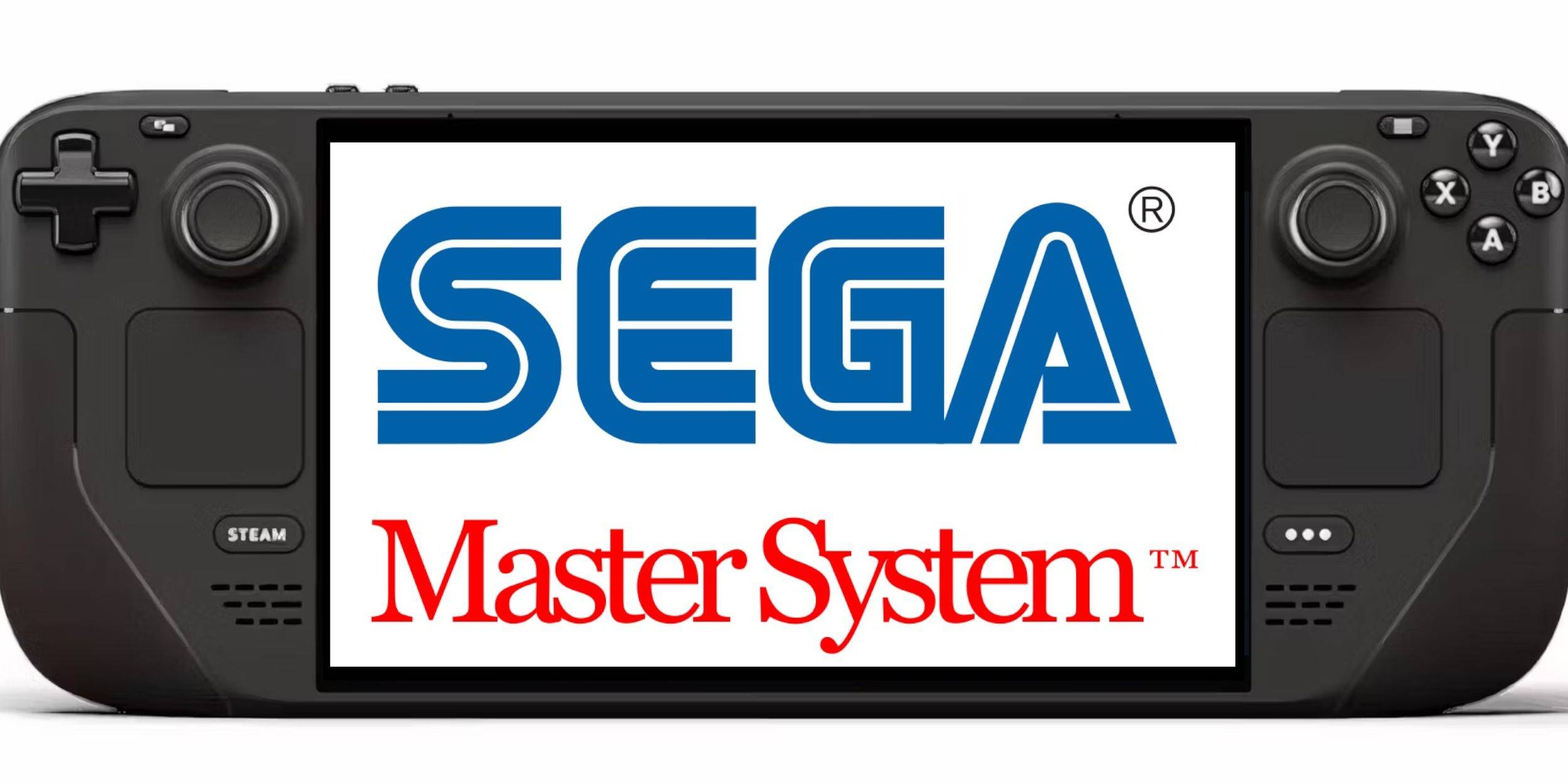
Steam Deck: How To Run Sega Master System Games
Quick Links
The Sega Master System, an 8-bit rival to the NES, boasted a fantastic library of games, many exclusive or featuring unique versions not found elsewhere. Highlights included superb ports and unique versions of titles like Golden Axe, Double Dragon, and Streets of Rage. The system even surprised with games like Mortal Kombat and Asterix & Obelix, which pushed the hardware closer to the capabilities of 16-bit contemporaries like the Megadrive/Genesis.
Retro gaming enthusiasts often face limitations when playing Sega Master System games on modern systems. However, the Steam Deck, combined with the powerful EmuDeck program, makes this entirely feasible. This guide details how to install the necessary emulators for Sega Master System games on your Steam Deck.
Updated January 15, 2024, by Michael Llewellyn: While the Steam Deck's power easily handles Sega Master System games, replicating the performance of original 8-bit hardware can present challenges. This is where Decky Loader and the Power Tools plugin become invaluable. The EmuDeck developers recommend both for optimal retro gaming performance. This guide has been updated to include installation steps and a fix for restoring functionality after a Steam Deck update.
Before Installing EmuDeck
 Before installing EmuDeck on your Steam Deck for Sega Master System gaming, ensure you have the following:
- A fully charged Steam Deck or one connected to a power source.
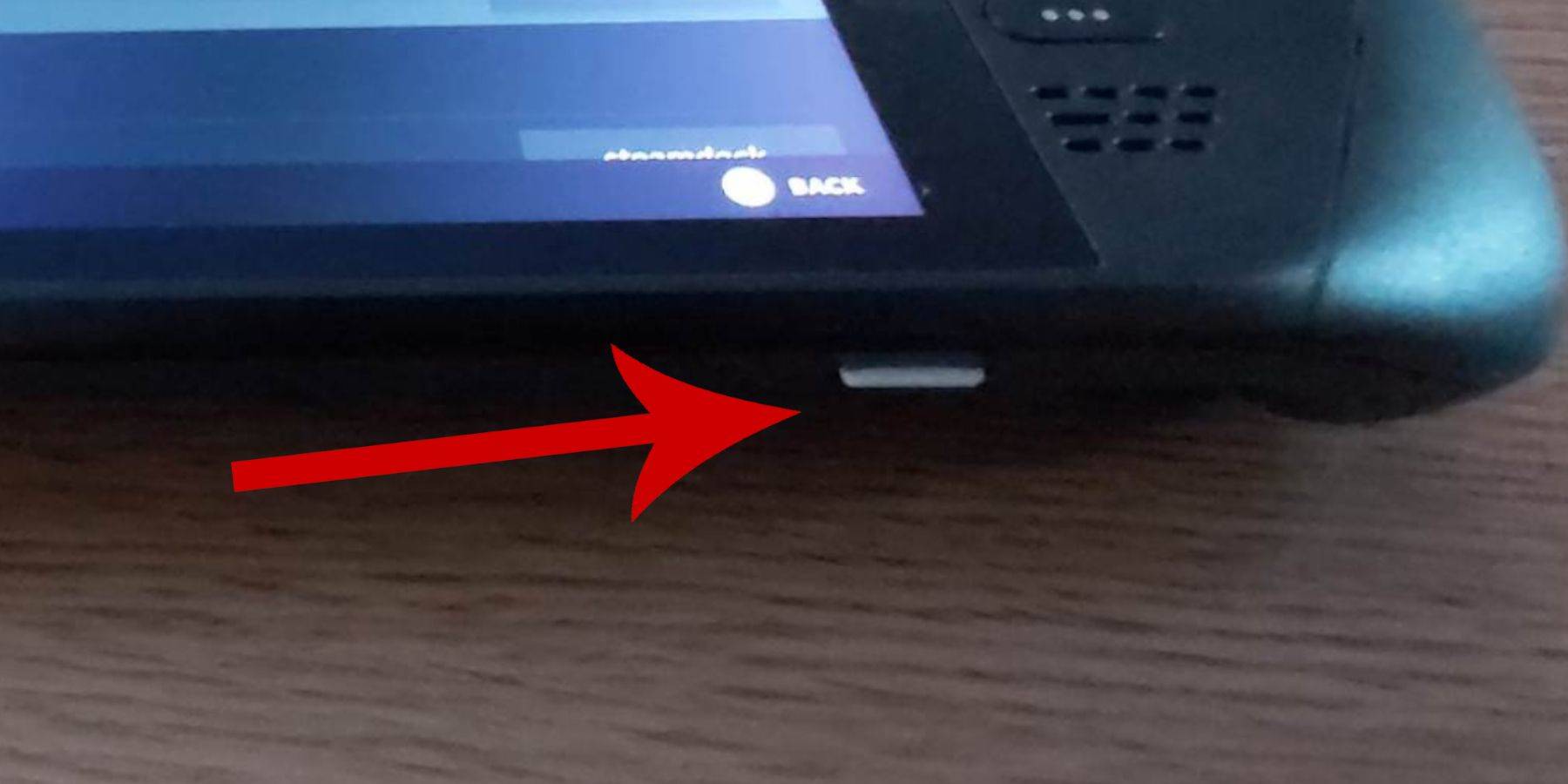
- A high-speed microSD card (formatted on the Steam Deck) for installation. Alternatively, an external HDD can be used, but this will reduce the Steam Deck's portability.
- A keyboard and mouse are recommended for easier file transfers and program execution. The Steam Deck's on-screen keyboard (accessed by pressing Steam + X) and trackpads can be used as an alternative.
Activate Developer Mode
Before installing emulators and running games smoothly on your Steam Deck, Developer Mode must be enabled:
- Press the Steam button to open the left-hand menu.
- Go to System > System Settings.
- Enable Developer Mode.
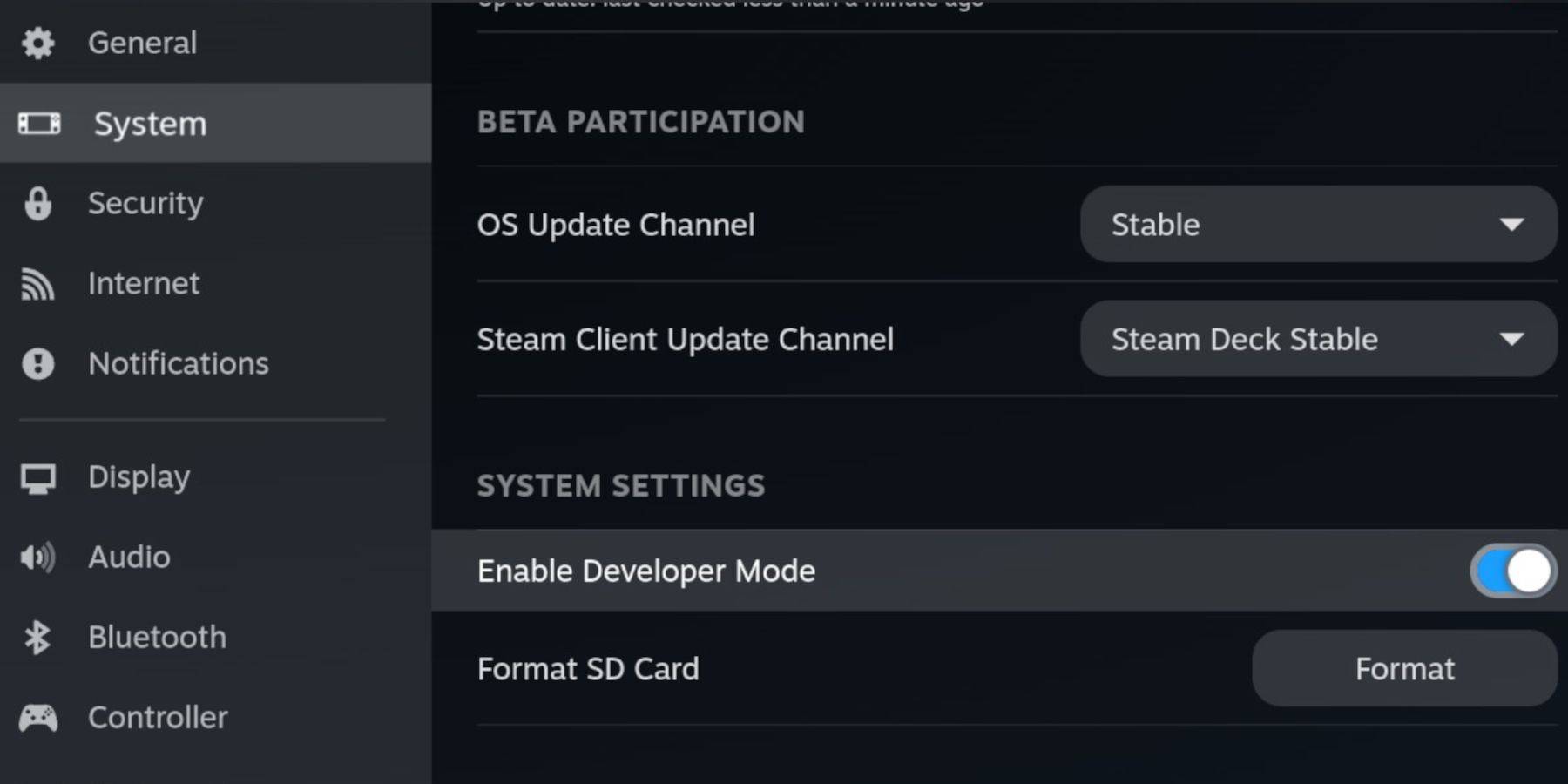 - The Developer menu is at the bottom of the left-hand menu. Open it.
- Under Miscellaneous, enable CEF Remote Debugging.
- Press the Steam button.
- Select Power > Restart.
Note that CEF Remote Debugging may be disabled after updates. This can deactivate plugins and interfere with emulators. Always check the Developer menu after an update to ensure it's enabled.
Installing EmuDeck In Desktop Mode
 - Press the Steam button, select Power, and switch to Desktop Mode.
- Use a browser (Chrome or Firefox) to download EmuDeck.
- Choose your SteamOS version and download. Double-click the installer, accept the recommendations, and begin installation.
- Select Custom Install.
- After installation, open the menu and select the SD card image labeled "Primary." This renames your SD card, making it easier to locate in the Dolphin file manager.
- You can install all emulators or just select RetroArch for Sega Master System.
RetroArch runs various classic gaming system emulators through a single application. These are accessible under the 'Emulators' tab in your Steam library.
- Ensure Steam Rom Manager is also selected with RetroArch to display games in your main Steam library.
- Enable "Configure CRT Shader for Classic 3D Games" for a classic TV look (optional).
- Select Finish.
Transferring Master System ROMs
With RetroArch and EmuDeck installed, transfer your Sega Master System ROMs:
- Open the Dolphin File Manager.
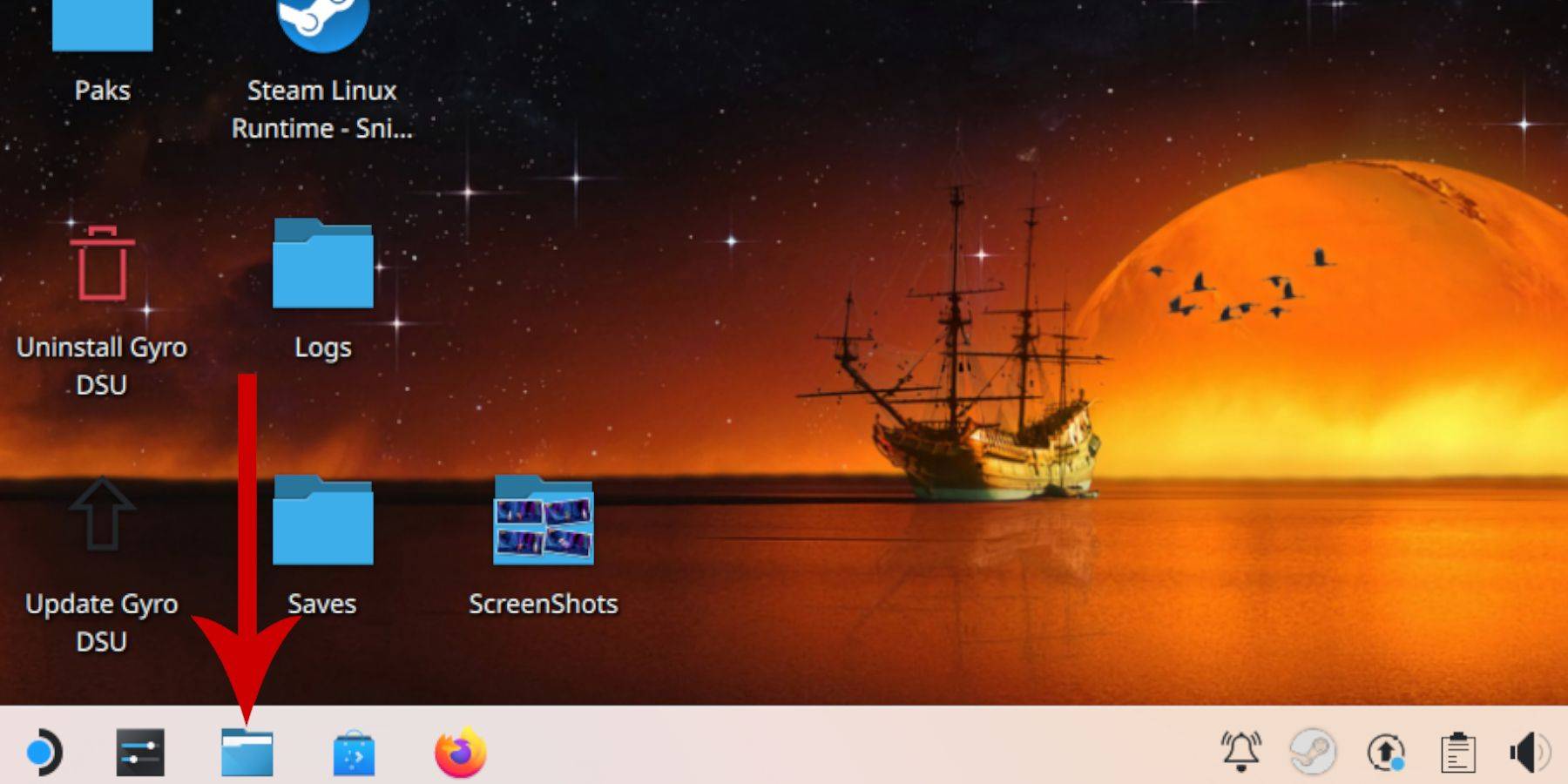 - Go to Removable Devices and open the "Primary" SD card.
- Open the Emulation > ROMS folder.
- Locate the "mastersystem" folder.
- Transfer your Sega Master System ROMs (
.smsfiles). Ignore the "media" file.
Adding Master System Games To The Steam Library
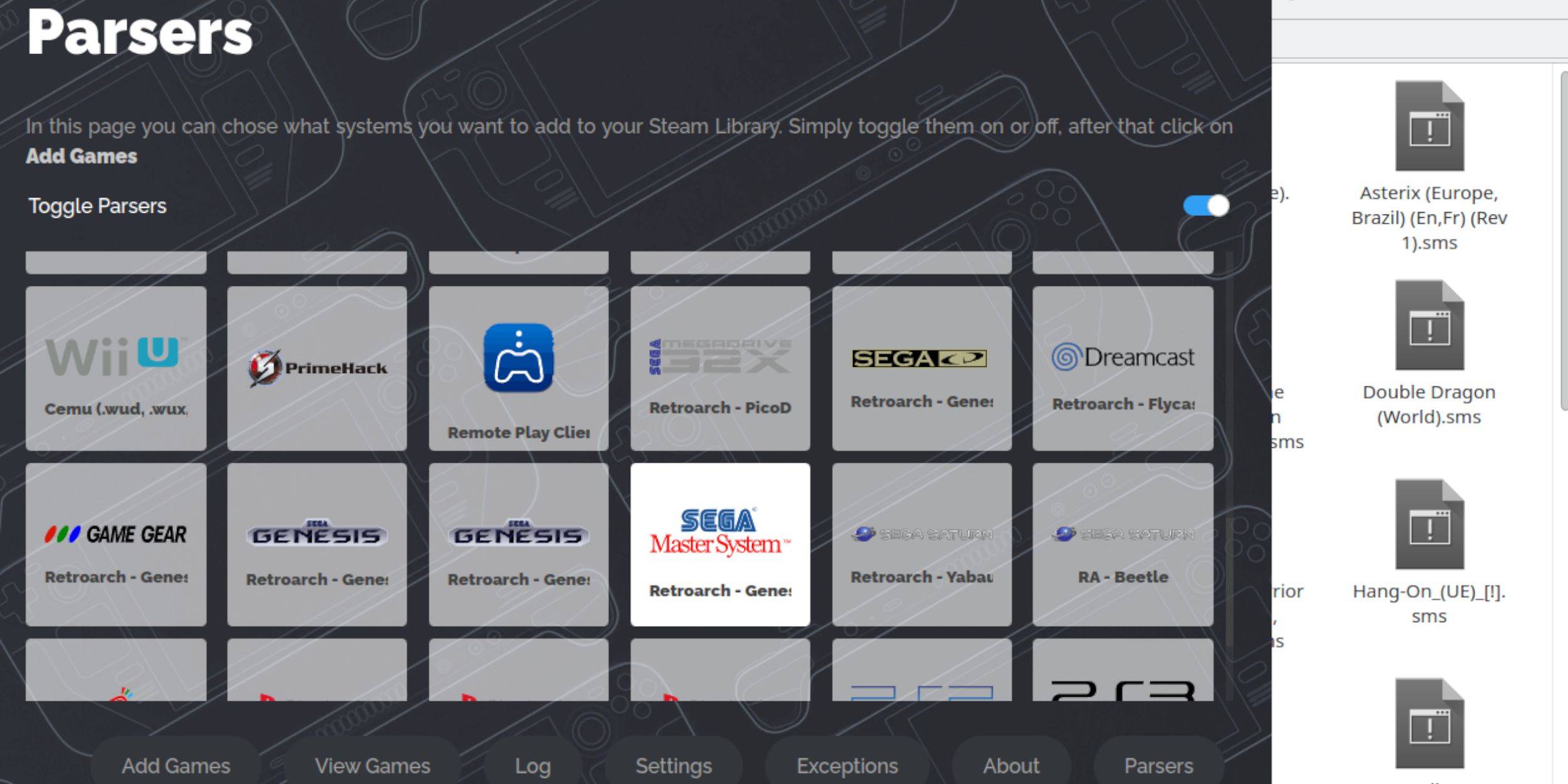 While playable from RetroArch in Desktop Mode, add your games to your Steam Library for Gaming Mode access:
- Open EmuDeck in Desktop Mode.
- Open Steam Rom Manager.
- Click Next on the welcome screen.
- Turn off Parsers.
- Select Sega Master System.
- Choose Add Games > Parse.
- Verify game and cover art display, then select Save to Steam.
Fix Or Upload Missing Artwork
 Missing or incorrect artwork is possible with retro games. Use these steps to fix or replace it:
- Click Fix on the cover frame. Steam Rom Manager usually finds cover art automatically. If not, search for the game title.
- Select the best cover art and choose Save and close.
Upload Missing Artwork
If Steam Rom Manager can't find artwork:
- Download the correct artwork and save it to the Steam Deck's Pictures folder.
- Click Upload on the cover frame.
- Select the artwork, save, and close. If it doesn't display, use the left/right arrows to find it.
- Click Save to Steam.
- After the batch files finish, return to Gaming Mode.
Playing Master System Games On The Steam Deck
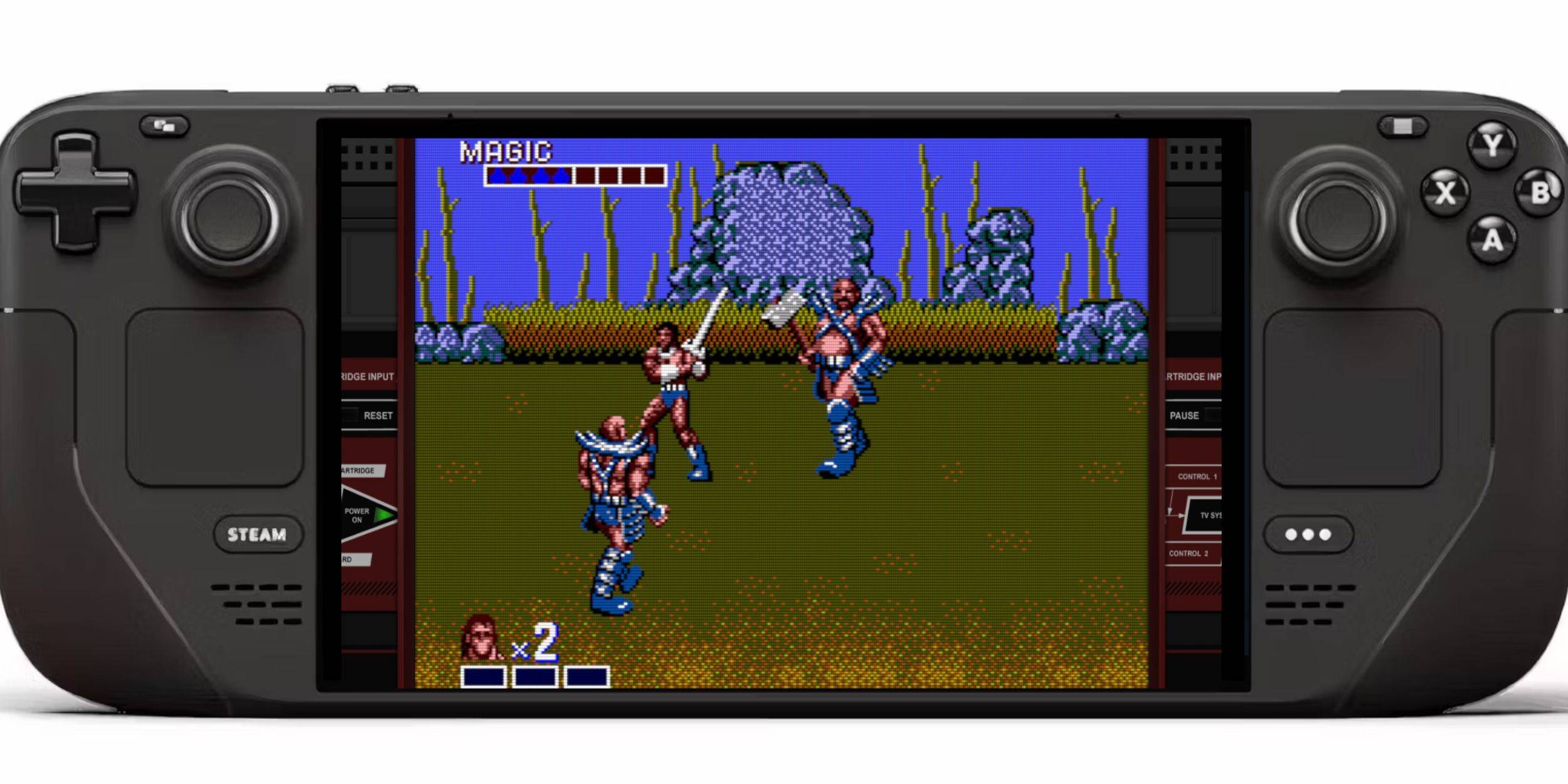 Once Steam Rom Manager has finished, access your emulated games like regular Steam games:
- In Gaming Mode, press the Steam button.
- Select Library.
- Press R1 to highlight Collections.
- Select the Sega Master System collection.
- Choose a game and play.
Improve Performance
Stuttering or frame rate issues can occur. To improve performance:
- Open a game and press the QAM button.
- Open the Performance menu.
- Enable "Use game profile."
- Set Frame Limit to 60 FPS.
- Enable Half Rate Shading.
Install Decky Loader For The Steam Deck
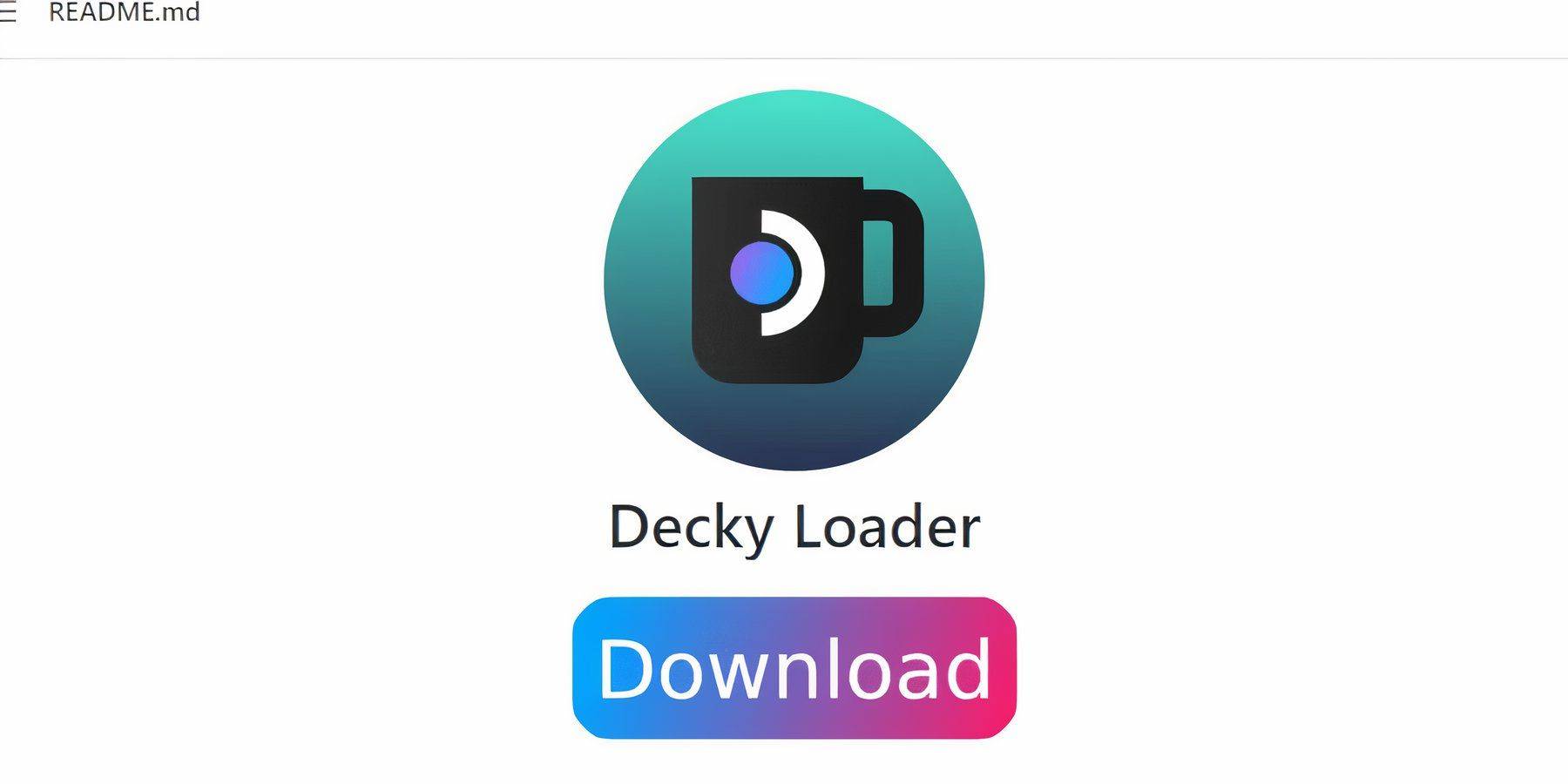 EmuDeck recommends Decky Loader and Power Tools for enhanced control and performance:
- Connect a keyboard and mouse (optional).
- Switch to Desktop Mode.
- Use a browser to go to the Decky Loader GitHub page.
- Download and double-click the launcher. Choose Recommended Install.
- Restart in Gaming Mode.
Install Power Tools
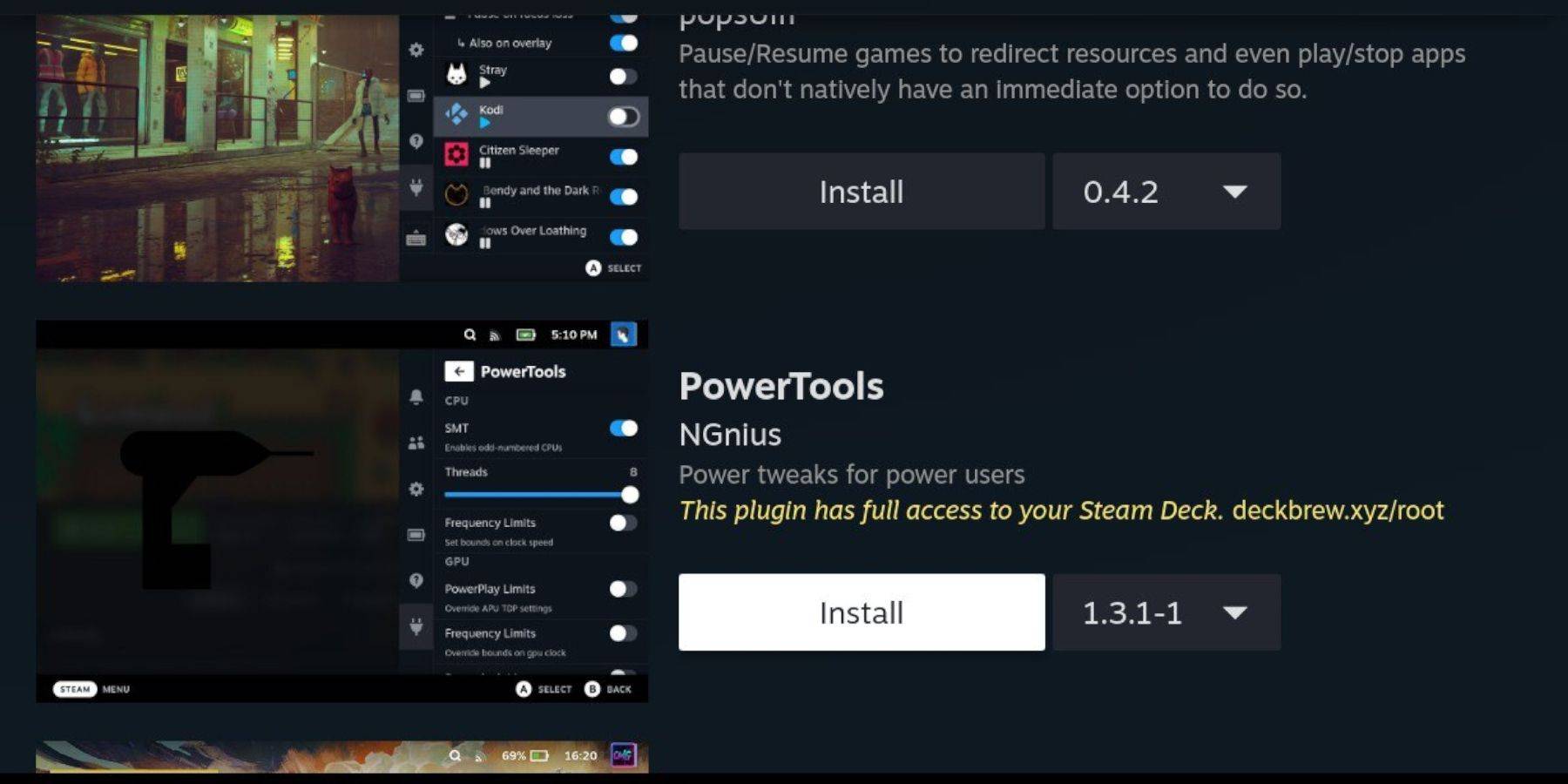 With Decky Loader installed, install Power Tools:
- Press the QAM button.
- Select the new plugin icon.
- Choose the store icon.
- Install Power Tools.
Power Tools Settings For Emulated Games
- Launch a Master System game.
- Press QAM > Decky Loader > Power Tools.
- Turn off SMTs.
- Set Threads to 4.
- Press QAM > Performance > Enable Advance View.
- Enable Manual GPU Clock Control.
- Set GPU Clock Frequency to 1200.
- Enable Per Game Profile.
Fixing Decky Loader After A Steam Deck Update
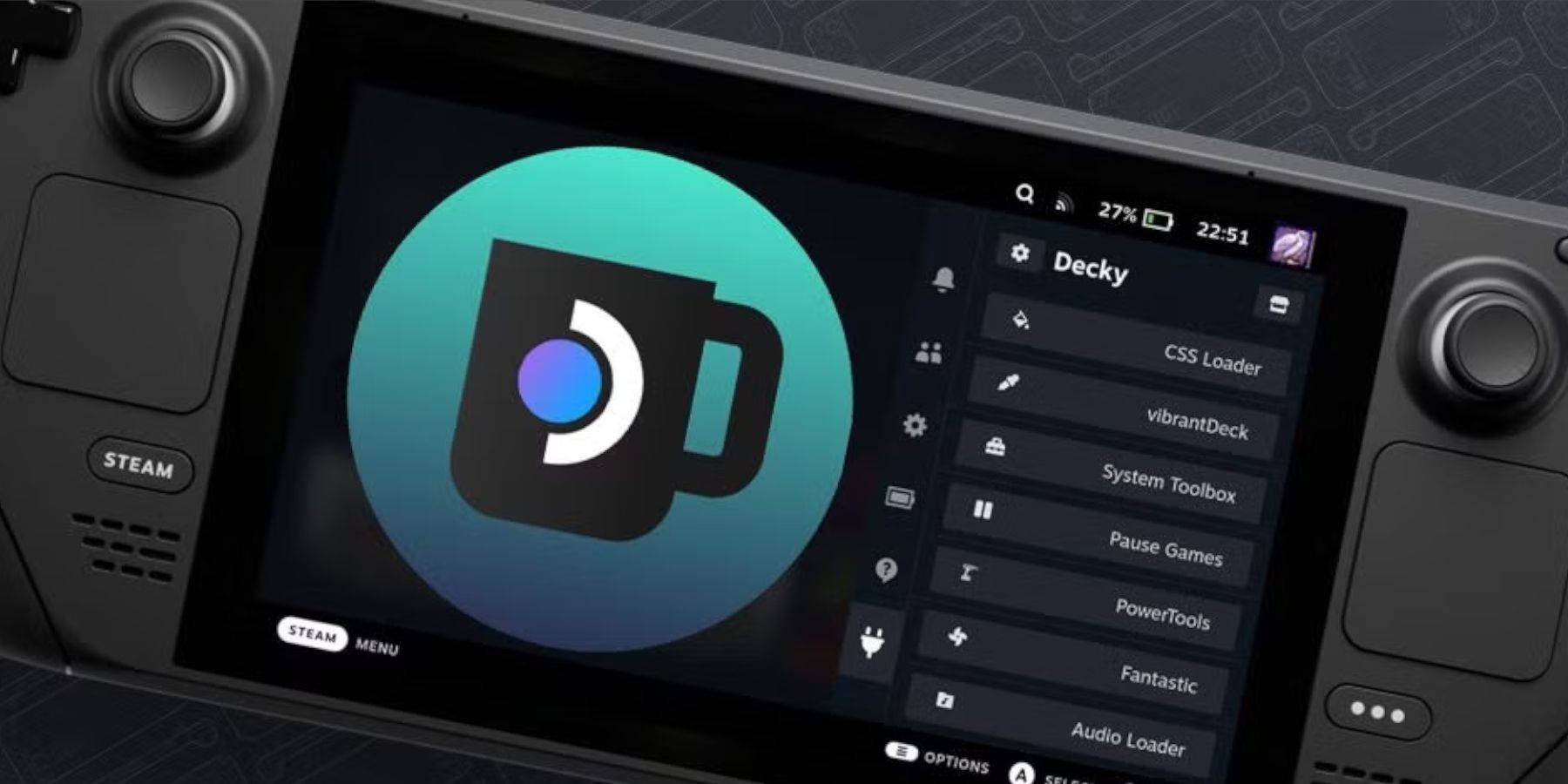 Steam Deck updates may remove third-party apps from the QAM. To restore Decky Loader:
- Switch to Desktop Mode.
- Go to the Decky Loader GitHub page and download.
- Select Execute.
- Enter your pseudo password (or create one).
- Restart in Gaming Mode.
-
 Pump with ElvieKeep up with your pumping routine effortlessly using the Pump with Elvie app. Designed as the perfect partner for your Elvie Pump or Elvie Stride, this app provides clear guided instructions, insightful articles, and customizable pumping options. Wh
 -
 언니의파우치 - 내돈내산 뷰티리뷰, 뷰티 앱테크Discover the 언니의파우치 (Sister's Pouch) beauty app where you'll not only enhance your beauty routine but also unlock easy earning opportunities. This innovative platform serves as your ultimate resource for authentic beauty reviews, engaging challenges
 -
 Claras Love HotelWelcome to Clara's Love Hotel, a luxurious sanctuary where deepest desires are fulfilled and wildest fantasies come alive. Join Clara and her alluring companions as they navigate a seductive world driven by passion, wealth, and danger. Within this p
 -
 Lazy JumpGet ready for chaos in Lazy Jump as you guide a floppy ragdoll through 300+ physics-based puzzle levels. Your character moves like a wet noodle, so quick thinking and a solid grasp of inertia are key to overcoming challenges—from scoring goals to an
 -
 Lunch with Ronan modIndulge in a provocative and intimate adventure with Lunch with Ronan, a sensual standalone spin-off from Notes of Hearts. This captivating visual novel places you in the role of Ronan's workplace colleague, uncovering a realm of passion, intimacy,
 -
 TRUE FITNESS SingaporeReady to begin your fitness journey? The True Fitness Singapore app is your perfect starting point! With convenient locations islandwide, premium facilities, and diverse class options like Yoga, Dance, and Cycling, True Fitness offers everything req